
Internet, filtered
A kids browser on the Microsoft Edge WebView2 engine. Sites are filtered, SafeSearch is enforced at the default level, and the bookmarks you choose wait on the start page. Big buttons, up to five tabs.
Free kids screen for Windows 10 and 11
Start Kids Mode, hand over the computer, and your child sees only what you chose: a kids browser with site filtering, 16 learning games and the apps you approved. Leaving Kids Mode takes your parent PIN.
For your child
Kids Mode replaces the Windows desktop with a bright full-screen shell. Your child picks a tile; the taskbar, the Start menu and the desktop stay out of sight.
A kids browser on the Microsoft Edge WebView2 engine. Sites are filtered, SafeSearch is enforced at the default level, and the bookmarks you choose wait on the start page. Big buttons, up to five tabs.
Colours, shapes, numbers, days of the week, animals, science and more. Built in, offline, with no ads, no chat and no purchases. Text and voice-over are in English.
Pick programs from the Start menu or any .exe, and they appear as tiles. Web browsers cannot be added: the kids browser is the only way online.
Screenshots
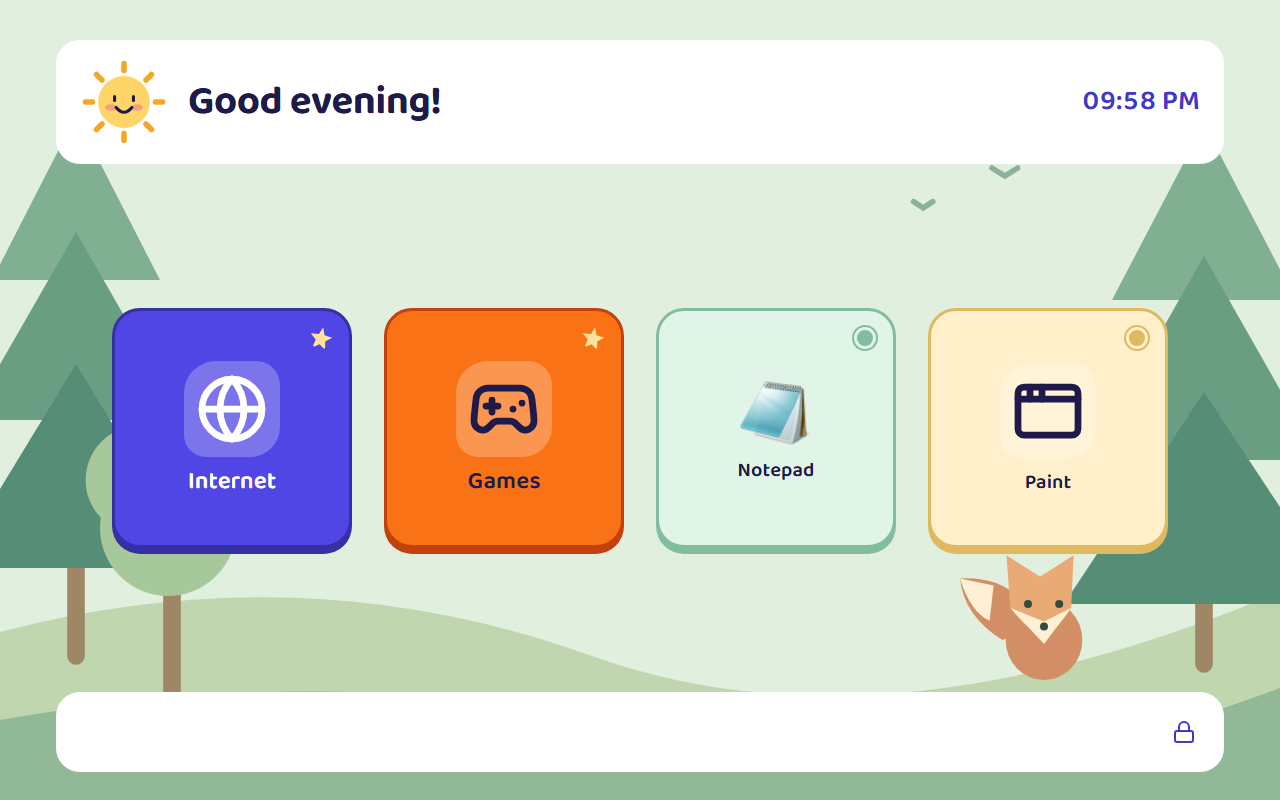
The greeting, the clock and big tiles: Internet, Games and the apps you approved. The small lock in the corner is the way out, and it asks for your PIN.
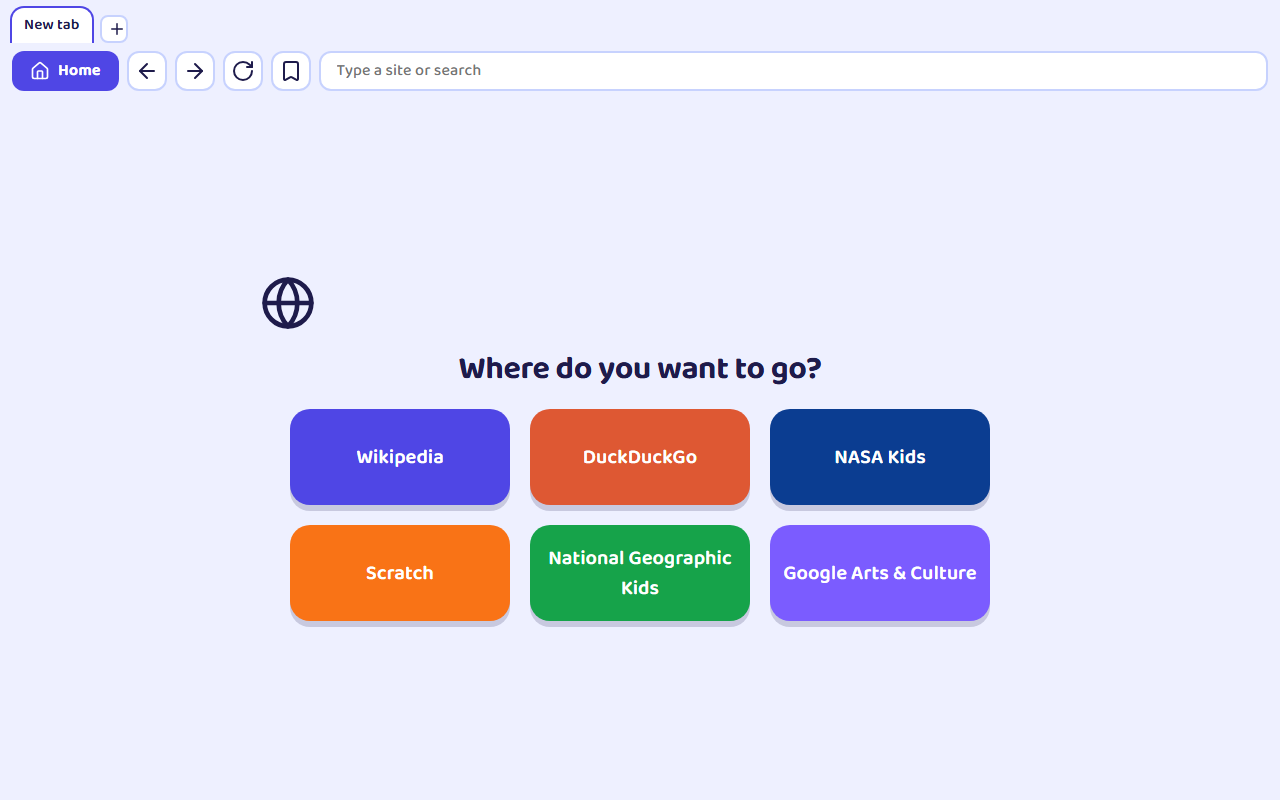
The start page shows the bookmarks you picked. Anything typed in the address bar goes to the search engine, with SafeSearch enforced from the Standard level up.
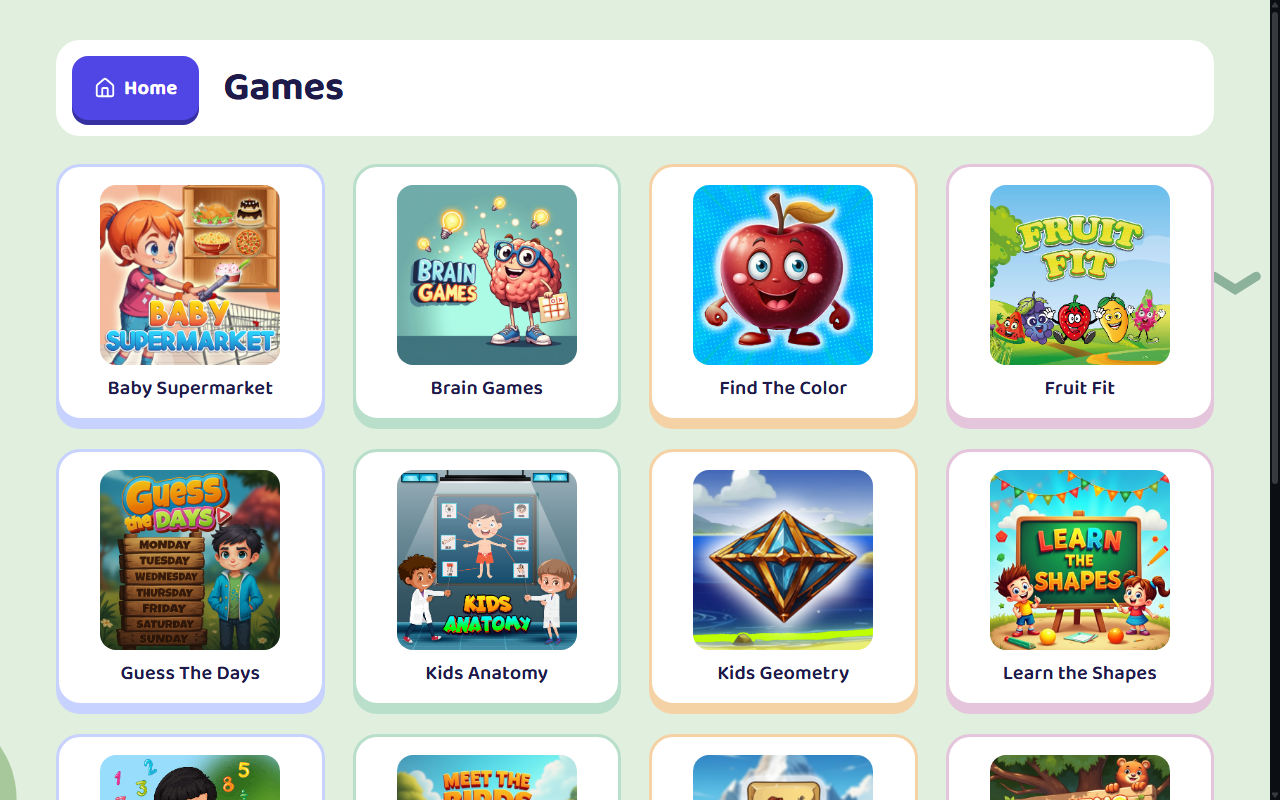
Covers in a grid; a game opens full screen, and a Home button always leads back. Each game keeps its own progress.
Stays locked
While Kids Mode is on, the KidSafePC service keeps watch. When you leave with your PIN, the taskbar, the desktop and every system setting come back exactly as they were.
They are closed the moment they start, even when an approved app launches them.
Edge, Chrome, Firefox, Opera, Brave and the rest cannot be added. Links from approved apps open in the kids browser.
Task Manager, lock, switch user, sign out and change password are hidden while Kids Mode is on.
File Explorer, Control Panel, Settings, Command Prompt, PowerShell and Run stay closed, unless you add one yourself.
After a restart, Kids Mode is back as soon as you sign in to Windows. If the kids screen ever crashes, it returns within a second or two, and the desktop never shows.
Good to know: filtering covers the kids browser. Internet access inside apps you approve is not filtered, and the parent window warns you when you add such an app.
Kids browser
Choose a level. Your own lists of allowed and blocked sites always win over it.
See which sites were opened or blocked over the last 7 days, and why. Only you see it, after entering your PIN.
For parents
Everything is set in the parent window, behind your PIN. Windows asks for administrator rights once, during setup; after that the KidSafePC service does the privileged work.
4 to 8 digits, chosen in the first-run wizard. Every change of settings asks for it.
A long one-time code shown at setup. Write it down or print it: if you forget the PIN, it ends Kids Mode and lets you set a new one.
One button in the parent window, or automatically whenever you sign in to Windows.
Tap the lock and enter the PIN. After 5 wrong tries, input pauses for a minute, and longer after that.
In the parent window:
Private by design
The app keeps your family's data on this PC. The website sends only a message you choose to submit through the contact form.
Read the privacy policyQuestions
Windows 10 version 2004 (build 19041) or newer, and Windows 11, 64-bit, Home and Pro editions.
Yes. No subscription, no ads, no in-app purchases and no account to create.
No. KidSafePC installs no drivers and leaves your network and DNS settings alone. Filtering happens inside the kids browser; you and your other programs use the internet as usual.
Choose "Forgot PIN?" and enter the recovery code from setup. It ends Kids Mode and lets you set a new PIN. You can issue a new recovery code in the parent window at any time.
It can be. Someone with their own administrator account and access to the PC outside Kids Mode can uninstall KidSafePC. Give your child a standard Windows account and keep the administrator password to yourself.
No. Besides the PIN and the recovery code, Windows Safe Mode always starts without Kids Mode, and from there you can uninstall the app.
Uninstall it in Windows Settings, Apps (administrator rights needed). Every system setting Kids Mode touched is restored, and you are asked whether to delete the settings, the PIN and the journal as well.
No, only in the kids browser. An app with its own internet access, such as a game with chat, is added at your discretion; the parent window warns you. Microsoft Store (UWP) apps are not supported in Kids Mode yet.
The app, the kids browser and this site are in English and German. The 16 games use English text and voice-over, a playful way to learn first English words.
Once, to install the KidSafePC service. The service switches Kids Mode on and off and keeps the settings, so the parent window and the kids screen never ask again.
Availability
KidSafePC 0.2.7 is being prepared for Windows 10 and 11, 64-bit, in English and German.
The Microsoft Store link will appear here after the signed release is approved. We do not offer unsigned downloads or a public direct installer.
Contact
Send a question or report a problem. We use your details only to answer this message.
Support: support@kidsafepc.com